Complex industrial products are often difficult to explain with product photography alone. A component may be small compared with the machine around it, its important features may be hidden, and the user may need to understand both the part itself and its relationship to the larger assembly.
This is where 3D technical documentation becomes useful.
Instead of presenting product information as a collection of disconnected diagrams, a browser-based experience can place the product in context, let users inspect the structure, identify components through hotspots, and open the information they need without leaving the product environment.
For manufacturers, the opportunity is not simply to replace a PDF with a rotating model. The more useful approach is to connect the product, its context, and its documentation into one interactive experience.
Why Context Matters in Product Documentation
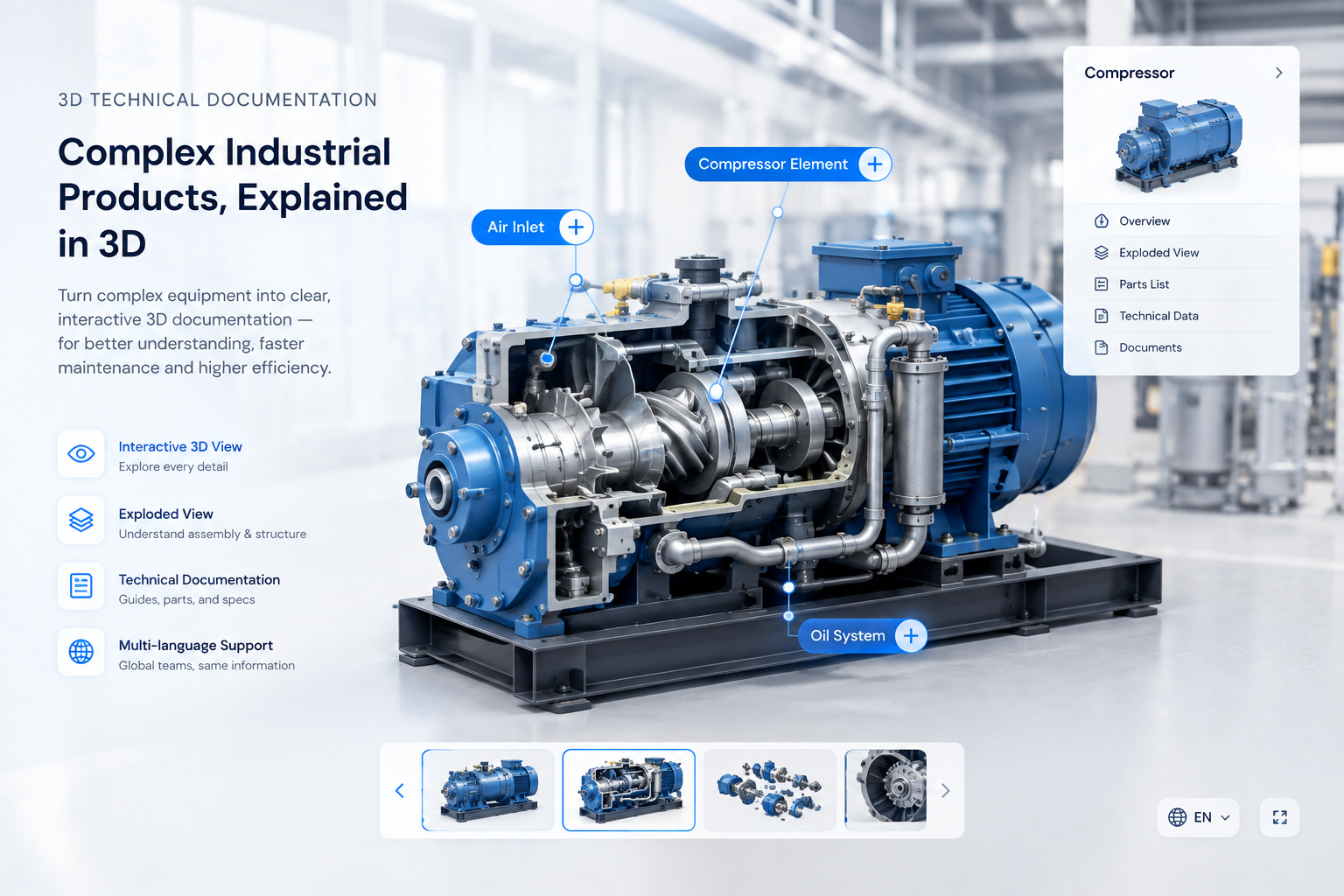
A technical illustration can identify a component. It may not show where that component sits in the larger system.
For complex equipment, the first question is often:
Where is this product located, and how does it relate to the surrounding components?
An interactive 3D manual can answer that question directly.
The user can start with the complete machine or assembly, locate the relevant component, select it, and then move into a more detailed view. This creates a progression:
System context → component identification → product details → deeper technical information
That progression is especially helpful when several similar parts appear in the same assembly or when the important geometry is hidden from a normal exterior view.
Section Views Turn Hidden Structure into Visible Information
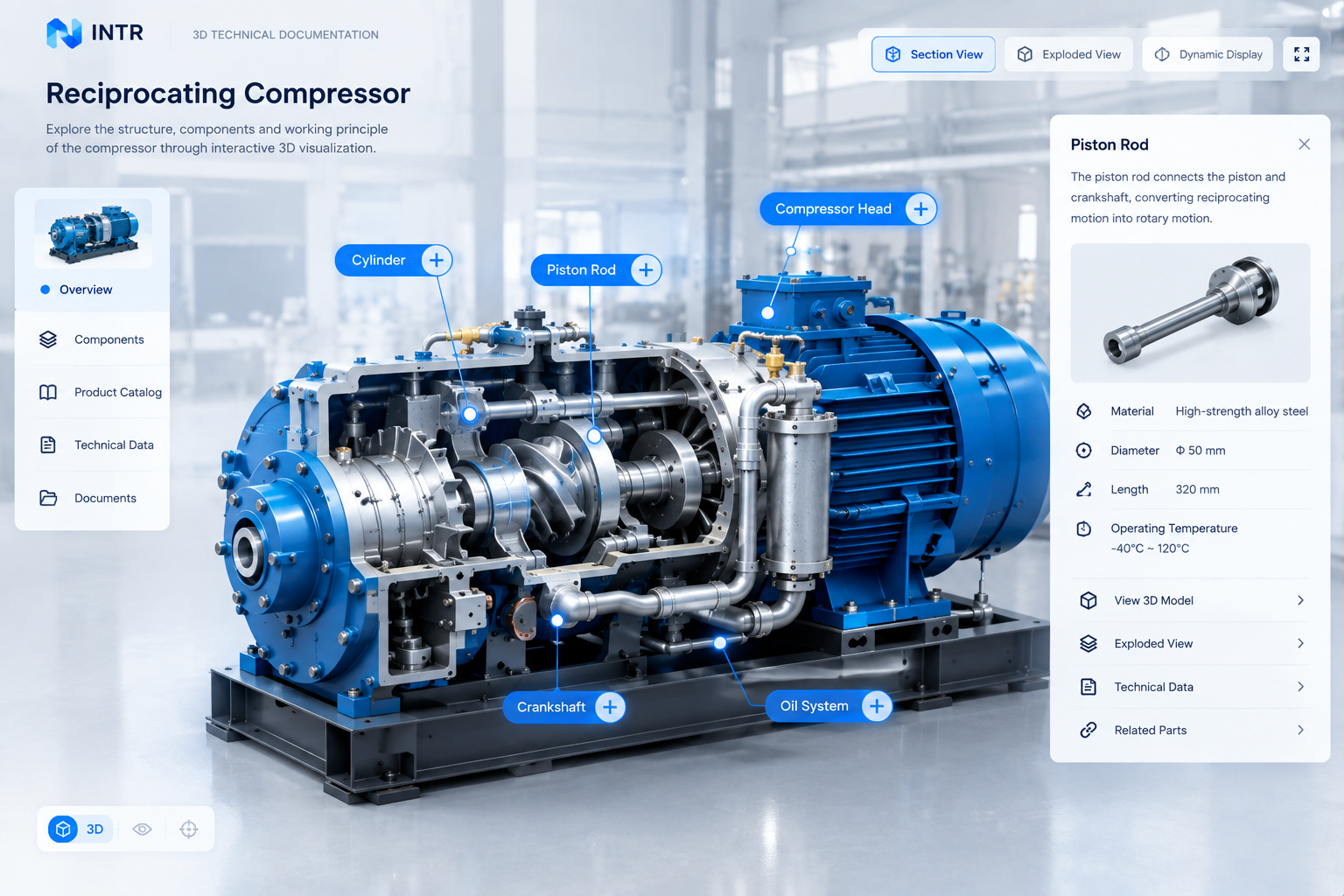
Section views are valuable when the product’s meaning depends on what happens inside it.
A conventional diagram can provide a cutaway illustration, but the user still has to interpret the drawing and mentally connect it to the real product.
A 3D section view can make the same relationship interactive.
For example, a user can:
- enter a sectional state
- identify the relevant product location
- select the component
- open its detailed information
- return to the complete assembly
The interaction should follow the information task. The section is not useful simply because it looks impressive; it is useful when it removes uncertainty about internal structure, component position, or operation.
Hotspots Connect Geometry with Documentation
A 3D scene becomes much more useful when users can connect visible geometry with structured information.
A hotspot can identify:
- a component name
- a part description
- a key feature
- a maintenance note
- an installation step
- a supporting image
- a related document
The important principle is context.
Instead of asking a user to read a separate list of part numbers and then find the corresponding location in a drawing, the information appears at the place where the user needs it.
Product Details Should Go Beyond the Model
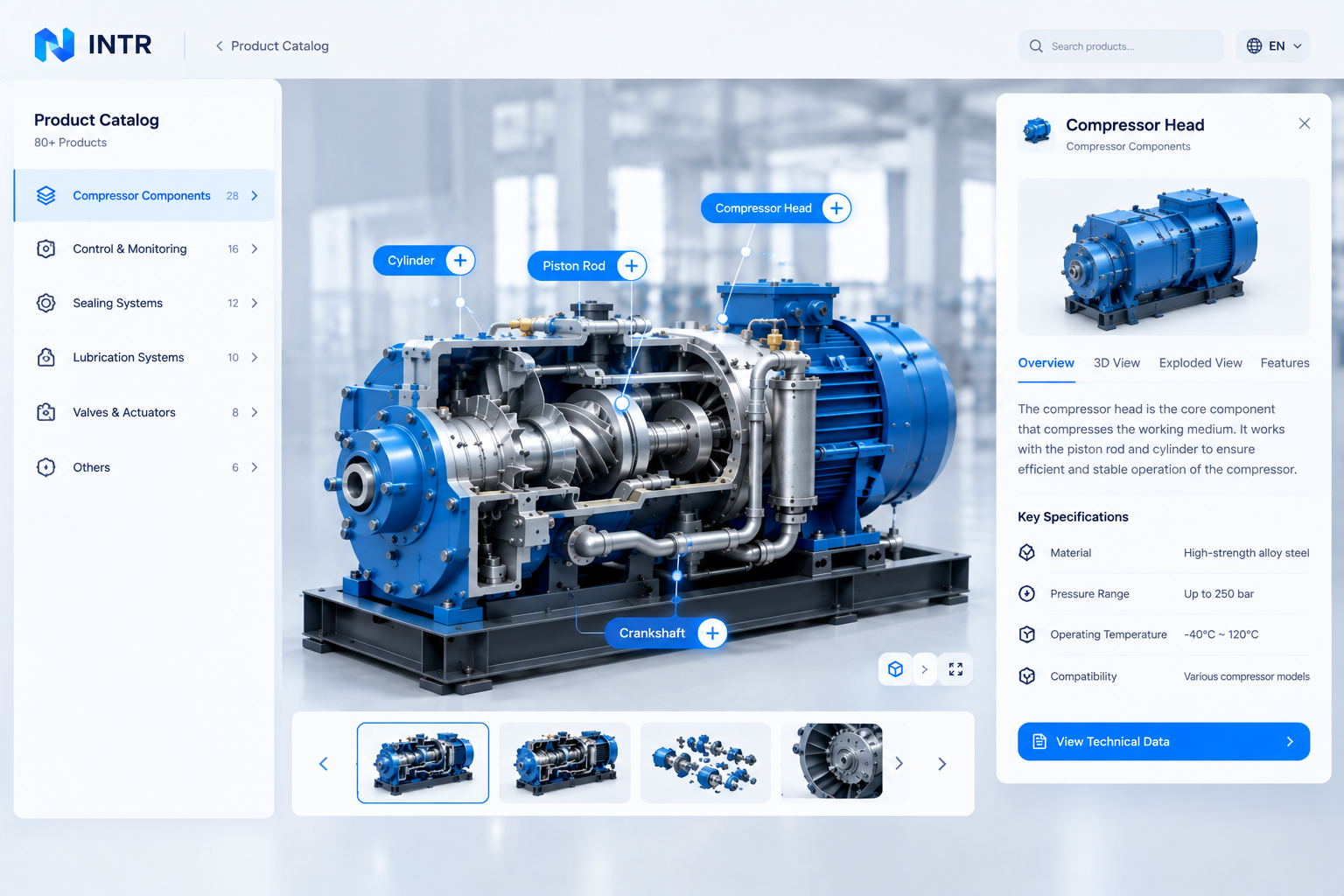
A strong interactive manual does not stop at model rotation.
A selected product can open a detail view that combines:
- the 3D object
- product characteristics
- additional diagrams
- exploded or assembly views
- supporting text
- related information
This makes the 3D model an entry point into technical documentation rather than the documentation itself.
It also creates a reusable information structure. The same product data can support the catalog, the manual, the product page, or future service content when the project architecture allows it.
A Product Catalog Can Become a Navigation Layer
Complex manufacturers often have many related products.
A digital product catalog can act as the first navigation layer:
Catalog → Product → 3D View → Related information
The catalog does not need to expose every technical detail at once. Its role is to help users find the right product, then move into the documentation that is relevant to that product.
This is especially useful when products share a common family structure or when users need to compare multiple related components.
Multilingual Documentation Can Share the Same 3D Structure
A multilingual experience can keep the same underlying product structure while localizing the information that users read.
The shared layer can include:
- 3D geometry
- camera states
- interaction logic
- animation states
- spatial relationships
The localized layer can include:
- interface labels
- product descriptions
- instructions
- warnings
- navigation
- supporting notes
This separation helps keep the 3D experience consistent while allowing the documentation to support different languages.
Build from the Information Task, Not the Model
One of the biggest mistakes in 3D technical documentation is starting with the question:
How detailed can we make the model?
A better starting point is:
What does the user need to understand or complete?
That may lead to a simple model with a clear hotspot system. Another project may need section views, exploded states, animation, and multiple product levels.
The right 3D scope depends on the actual documentation task.
What This Means for a Web-Based Manual
A useful interactive manual is not a 3D model placed beside a block of text. The documentation, 3D scene, navigation, and supporting content should work as one information system.
That means deciding which information belongs in:
- the 3D scene
- a hotspot or label
- a guided step
- a product detail panel
- a static image or diagram
- a downloadable document
This separation keeps the experience useful even when 3D is not the right format for every piece of information.
For manufacturers, the goal is not to make every instruction more interactive. It is to make the parts of the documentation that depend on spatial understanding easier to follow.
When to Use a Conventional Document
3D is not a replacement for every form of technical publication.
A PDF or other formal document may still be appropriate for:
- controlled reference material
- downloadable specifications
- records that must be archived
- detailed tables
- information that does not benefit from spatial interaction
A practical digital manual can combine these formats rather than forcing one format to do everything.
A Simple Project Workflow
- Identify the user task.
- Collect the existing technical publication, diagrams, product information, and available 3D assets.
- Map the product hierarchy and the information users need at each point.
- Choose where 3D, animation, hotspots, text, images, and downloads add value.
- Prepare the web-ready 3D assets.
- Build the interactive documentation layer.
- Test the experience on real desktop and mobile devices.
- Connect the manual to the relevant product, support, or contact journey.
The best projects start from the documentation task and use 3D where it removes ambiguity—not from the 3D model itself.
Continue with INTR
INTR builds custom Interactive 3D Product Manual experiences for complex products, combining 3D assets, product information, interaction, and browser-based delivery.